

Driver Installation for Windows
Windows 10 or higher
The required drivers are automatically installed as soon as you connect the Screenmate via a USB-C or USB-A cable. Make sure your laptop is connected to the internet. After successful installation, it is recommended to restart your laptop before using the Screenmate.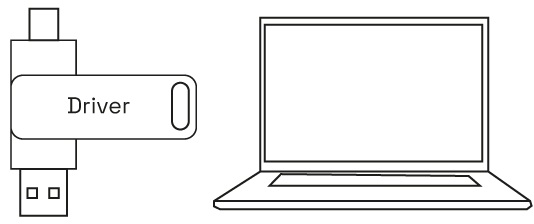
Manual Installation (if needed)
Is the driver not automatically installed? Follow these steps:- Insert the included USB stick into your laptop and open the ‘DRIVERS’ folder.
- Navigate to the folder that matches your Windows version.
- Double-click the installation file and follow the on-screen instructions.
- Restart your laptop after installation.
- Connect the Screenmate, it’s now ready for use.
Download Drivers
Download the correct driver for your operating system. You can also find the driver on the included USB stick or by scanning the QR code in the booklet.Windows 10 & 11:
Download for Windows 10/11Windows 7 & 8:
Download for Windows 7/8Driver Installation for MacOS
MacOS:- Insert the included USB stick into your Mac. The ‘Drivers’ folder will automatically appear on your desktop.
- Open the ‘Drivers’ folder and navigate to the ‘macOS’ folder.
- Install the driver following the installer instructions.
- Go to System Preferences > Security & Privacy > Screen Recording.
- Click ‘Unlock’ (you’ll need your Apple ID and password) and check ‘UsbDisplay’.
- After successful installation, restart your Mac.
- Connect the Screenmate – it’s now ready for use.
Download Driver for macOS
macOS:
Download for macOSIf the Driver Doesn’t Work
Follow these steps on your MacBook:- Go to “System Settings” > “Privacy & Security” > “Screen Recording”
- Click the ”+” symbol to add the driver. Is ‘UsbDisplay’ already in the list? Then proceed directly to step 5.
- Click on Applications > RacerUSB > usbDisplay and choose Open.
- Follow the on-screen instructions to install the driver.
- After successful installation, restart your laptop.
- Connect the Screenmate to your laptop, it’s now ready for use.